

Administrative Scale
Learn how to manage your administrative scale using the strategy feature in Spatium.
Design and manage it easily for yourself or your organization
In this tutorial, you'll learn how to easily manage your administrative scale using the strategy feature in Spatium.
Step-by-step: Create a new strategy
- From the Dashboard, click the "Create new Strategy" button.
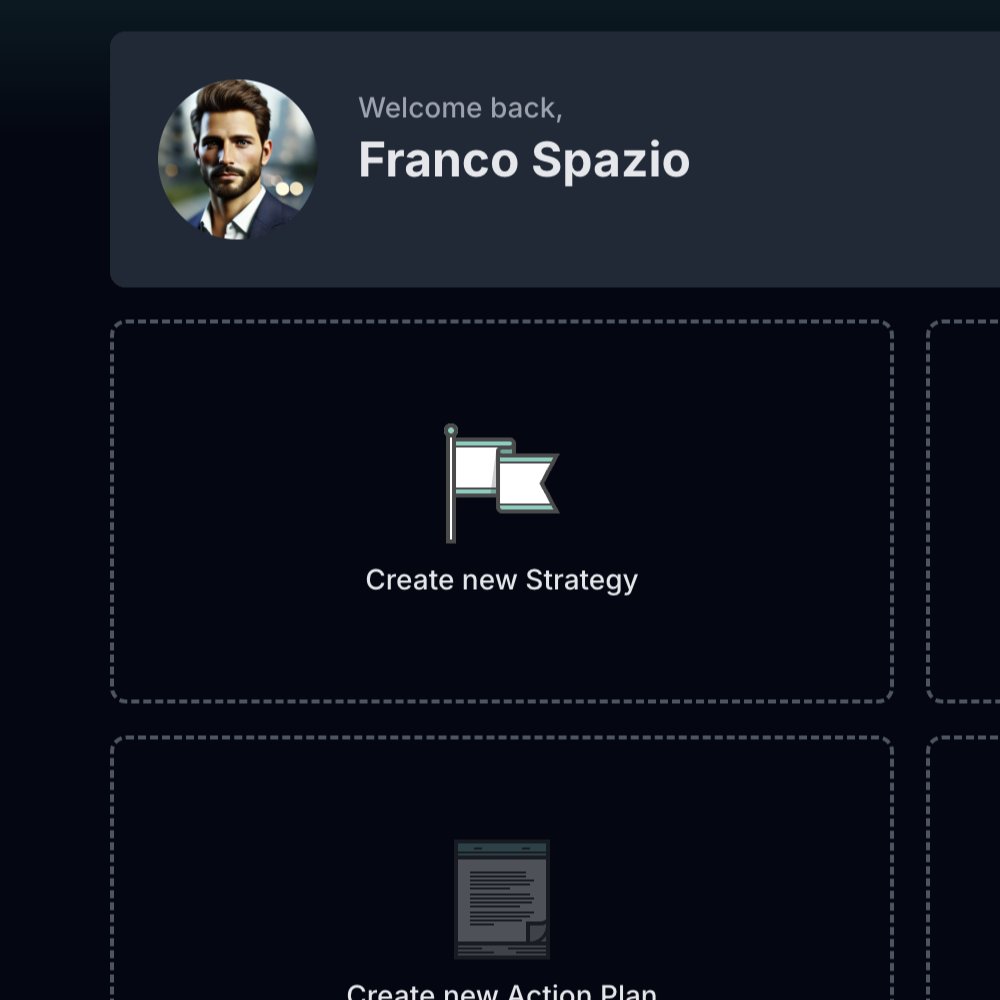
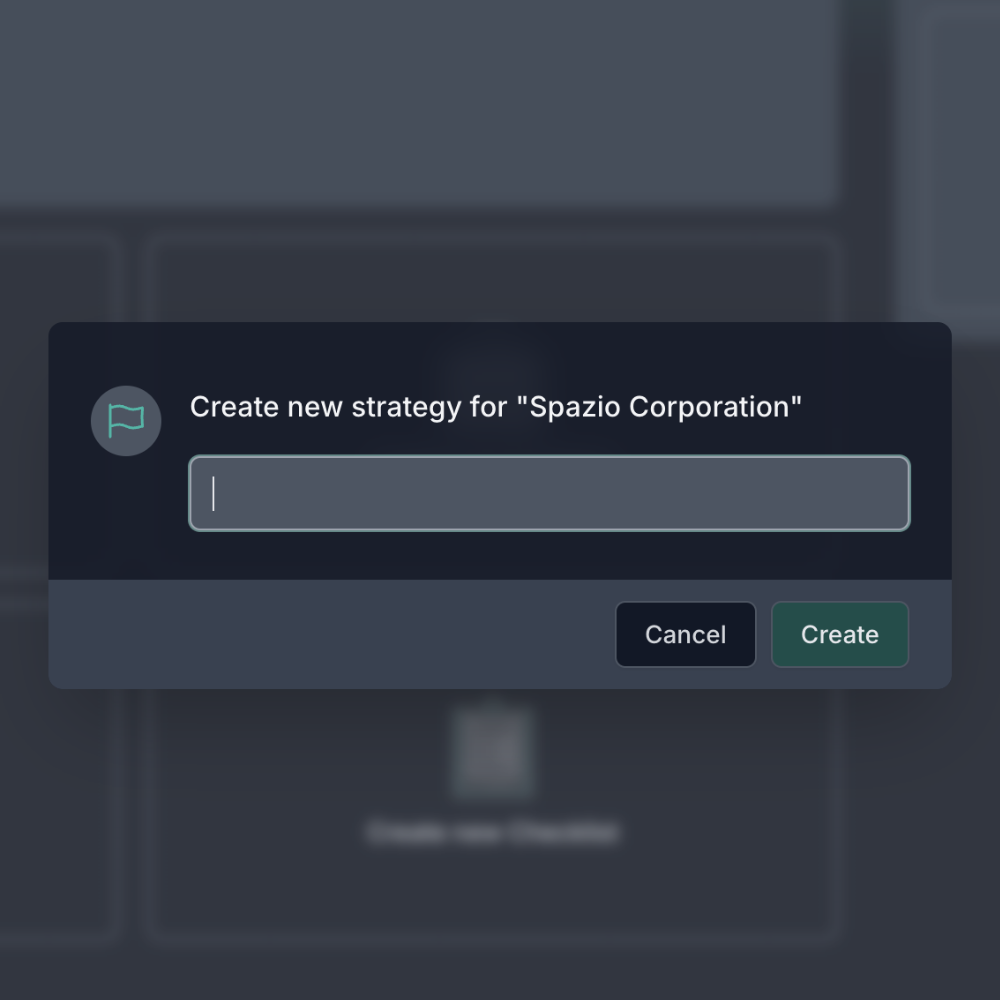
- Enter the title that will identify your strategy.
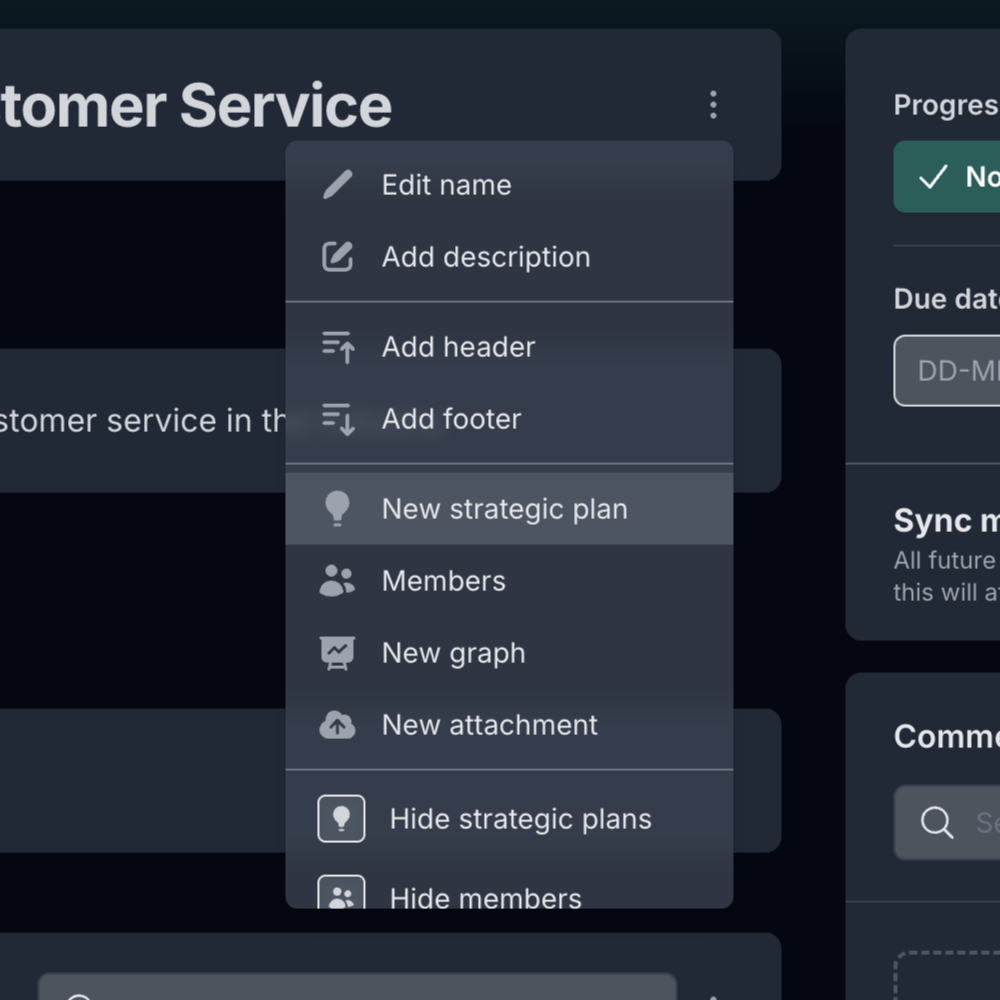
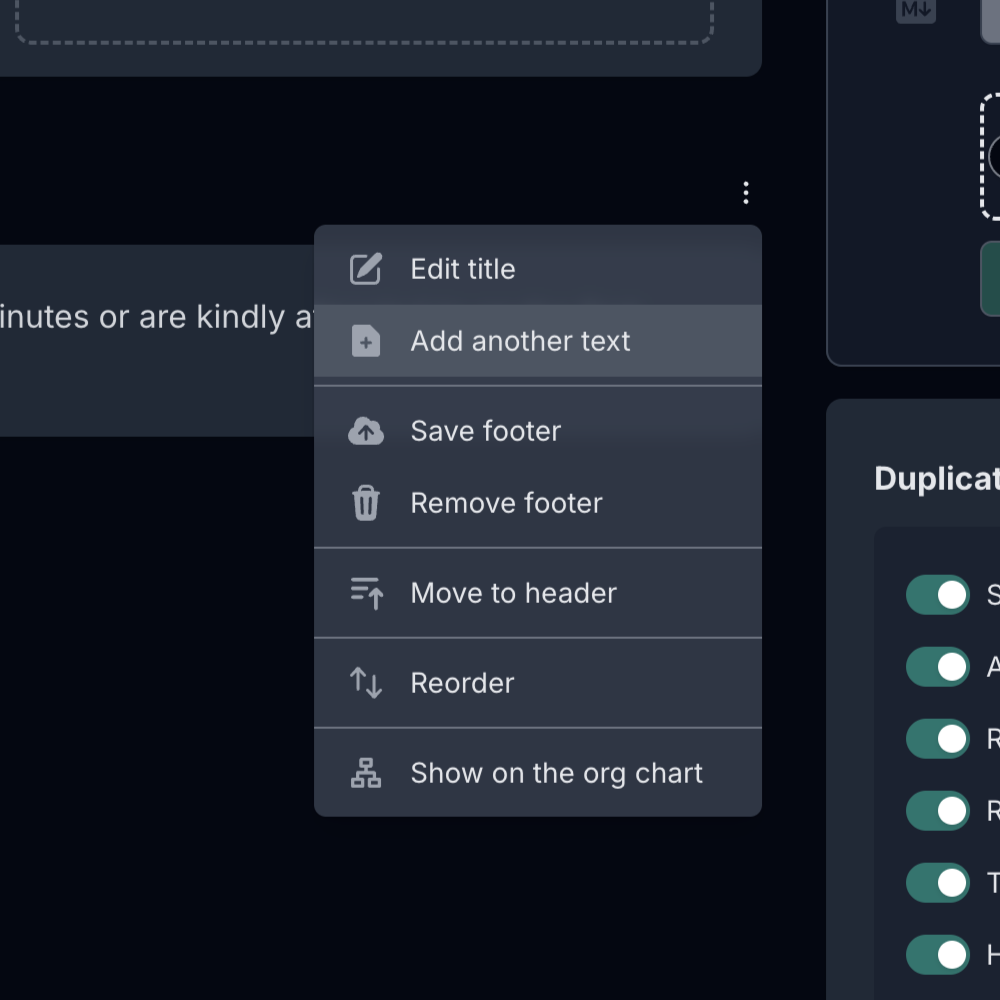
- Once created, you can start customizing your strategy by adding content to the Header and Footer sections. Click the three-dot icon to open the menu.
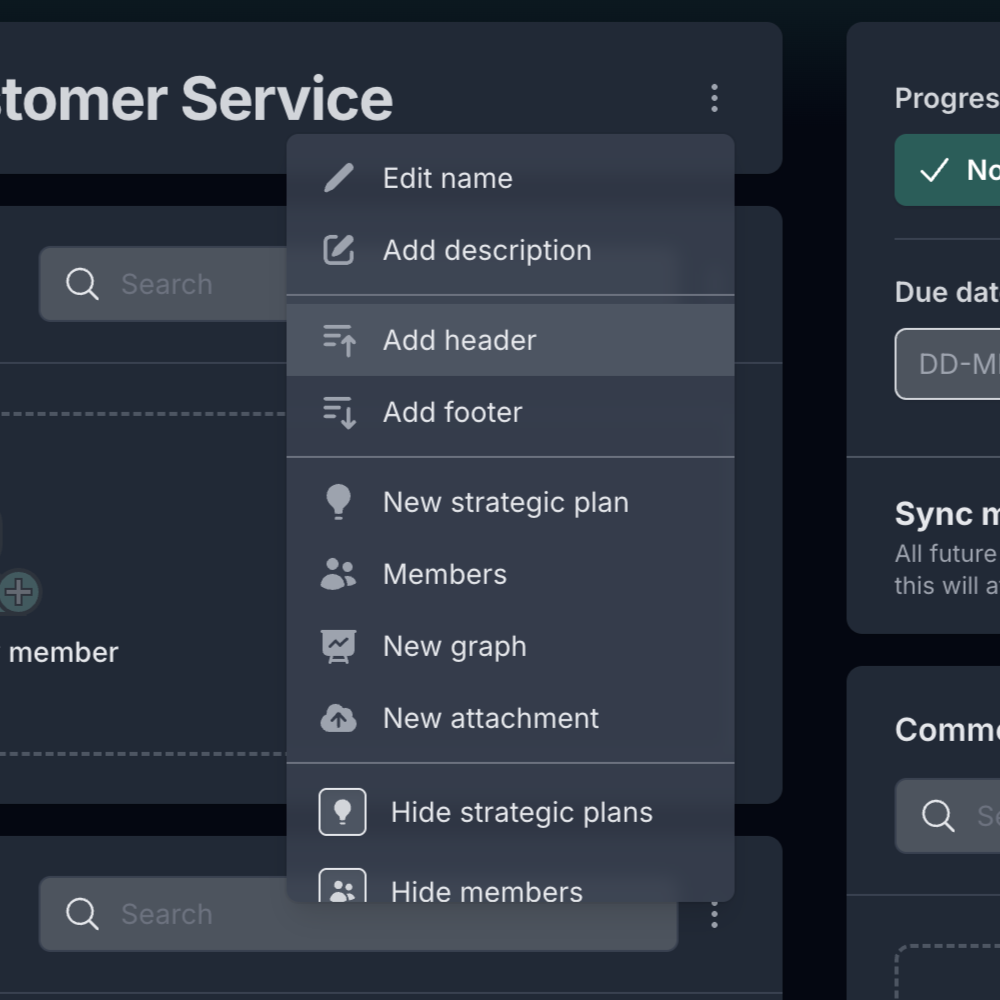
- Use these sections to add as many entries as you need to the header or footer, depending on your Administrative Scale structure.
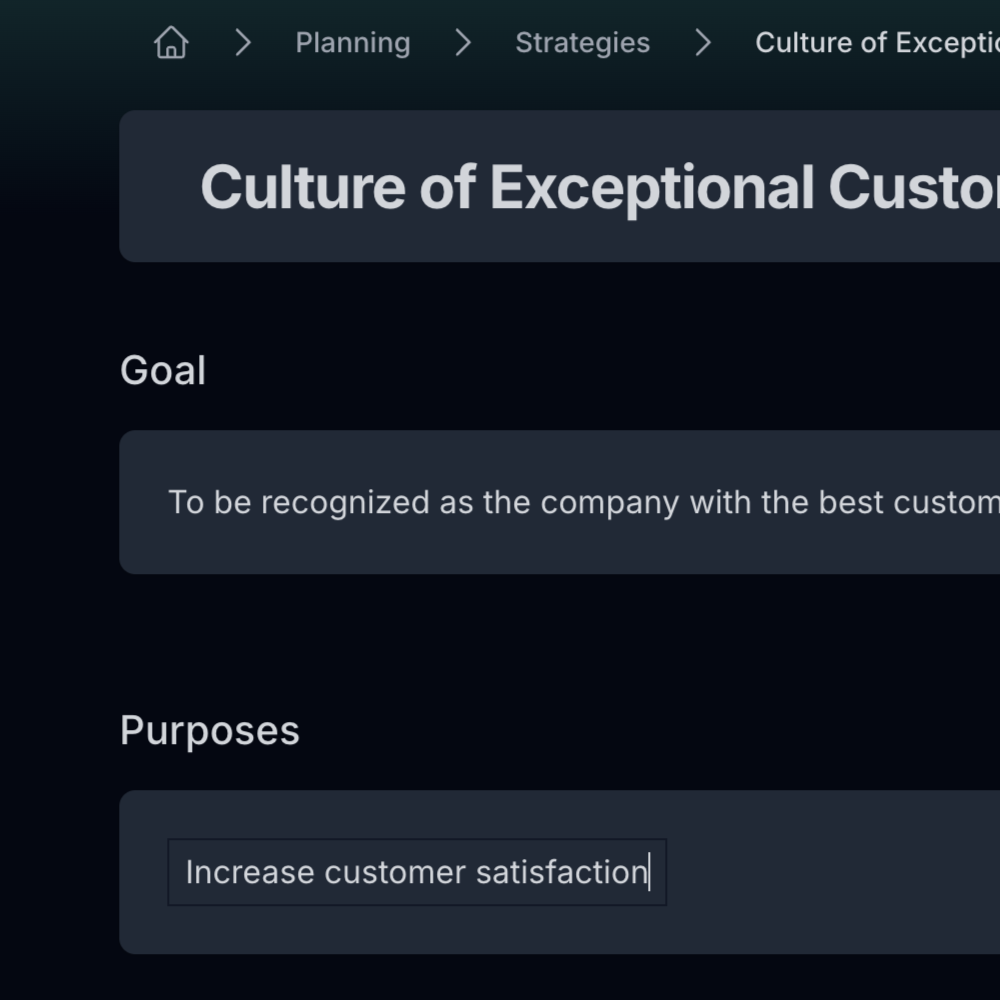
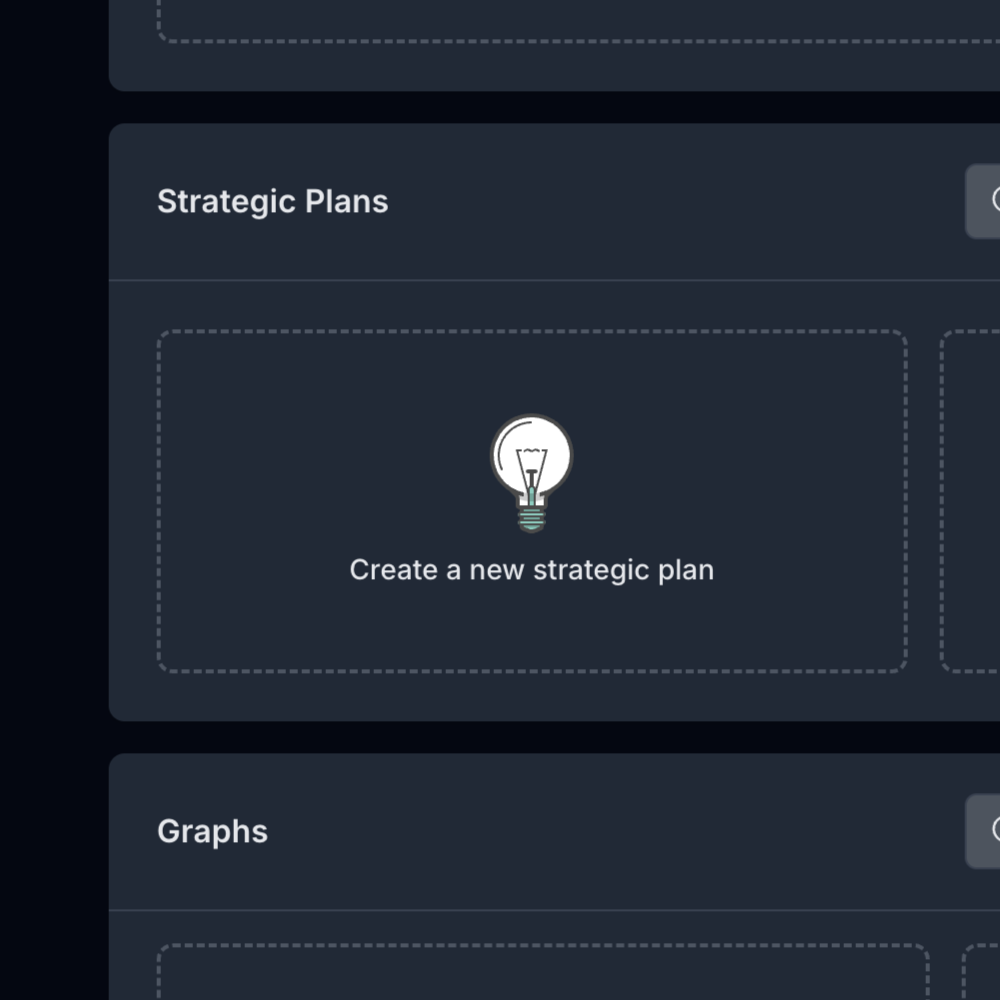
- To create a strategic plan, click on the "Create new Strategic Plan" icon and give it a name.
- You can also create a new plan from the dropdown menu (three dots) next to the strategy title.
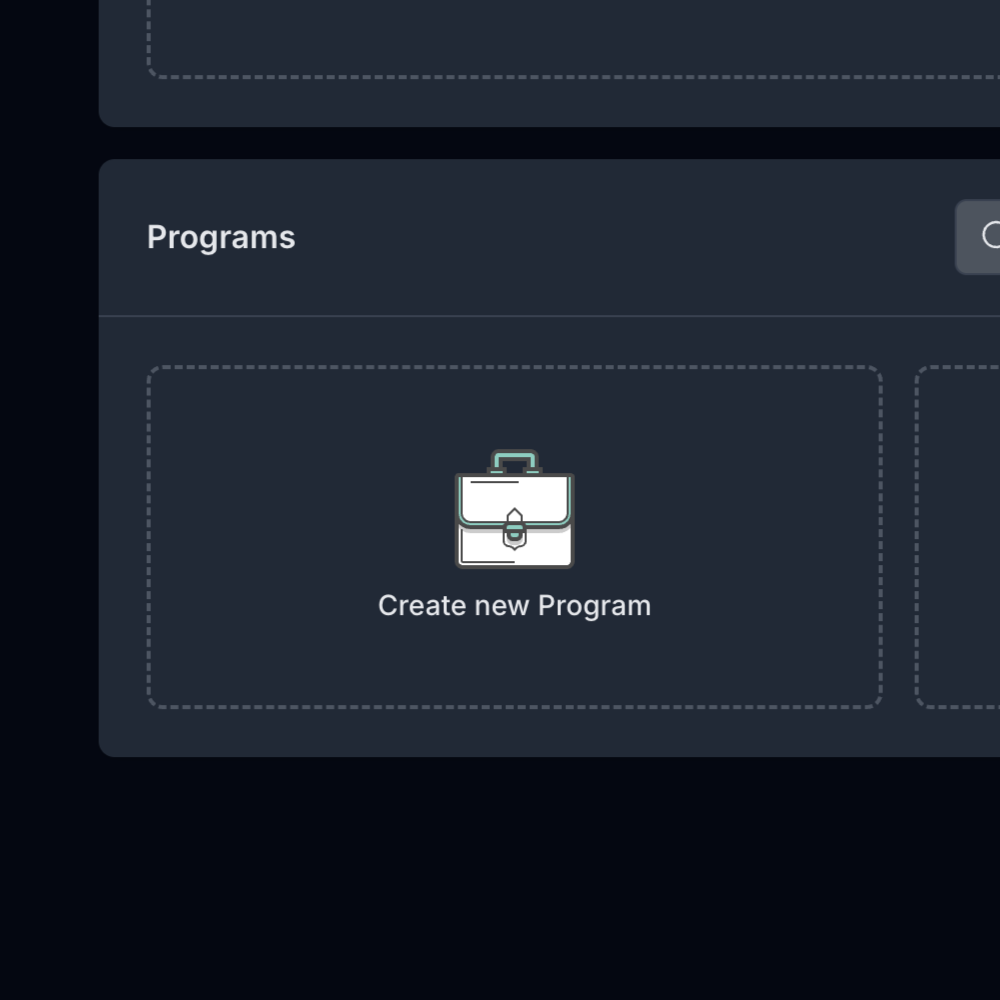
- Inside the strategic plan, click on the "Create new Program" icon to begin defining concrete actions.
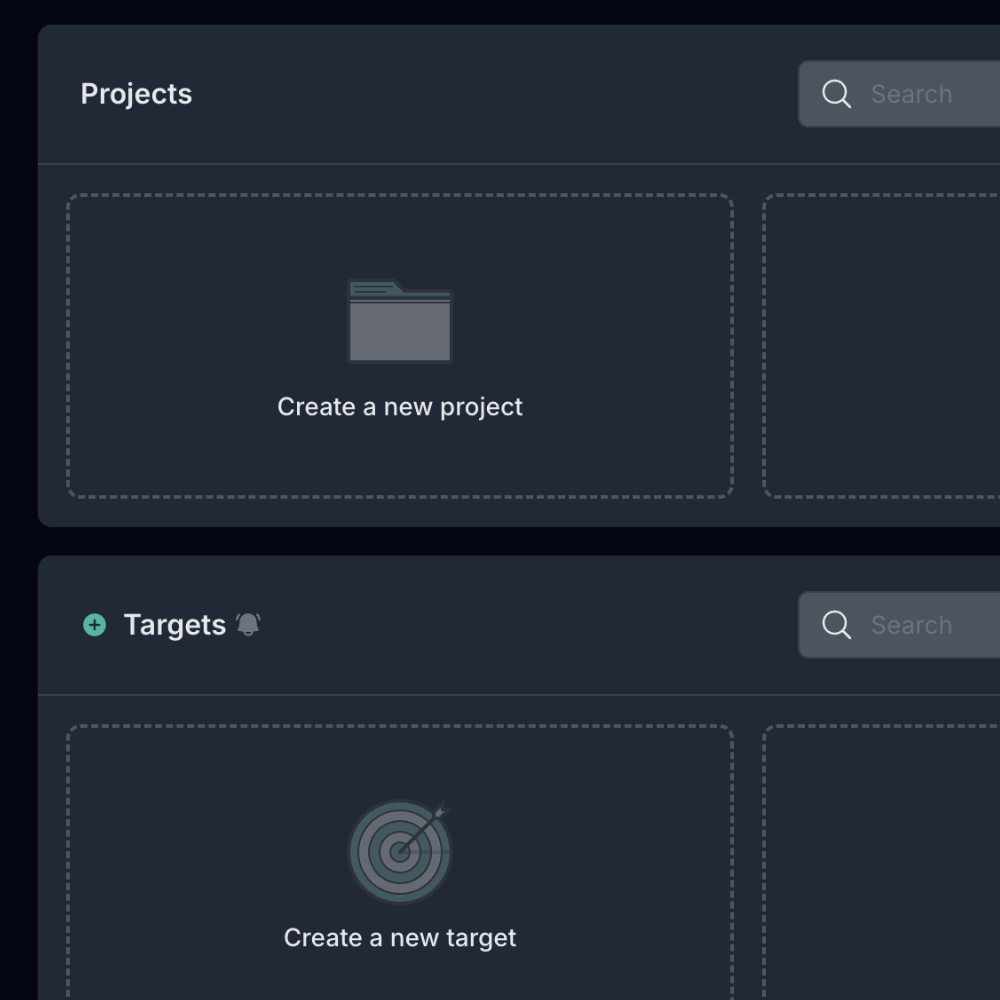
- Once the program is created, you can add projects and/or targets based on its requirements.
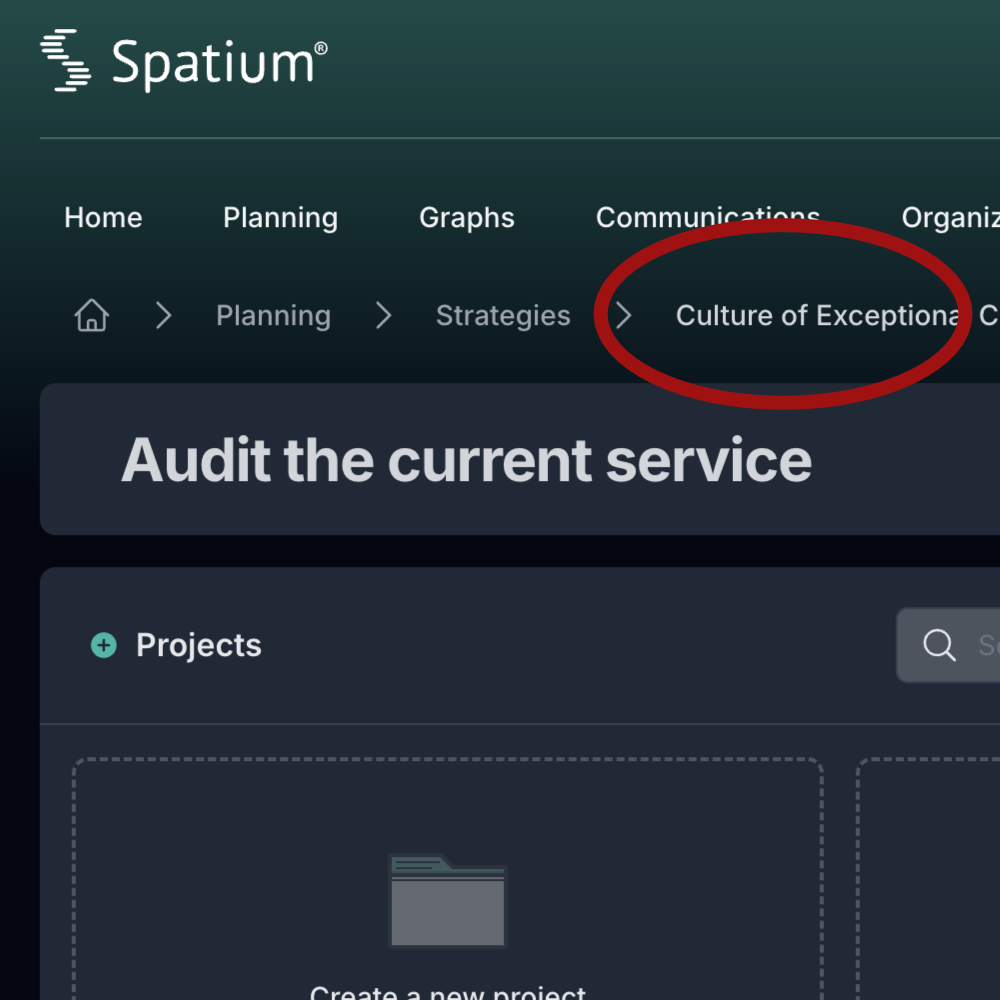
- To return to the main strategy, click the title in the breadcrumb navigation bar at the top.
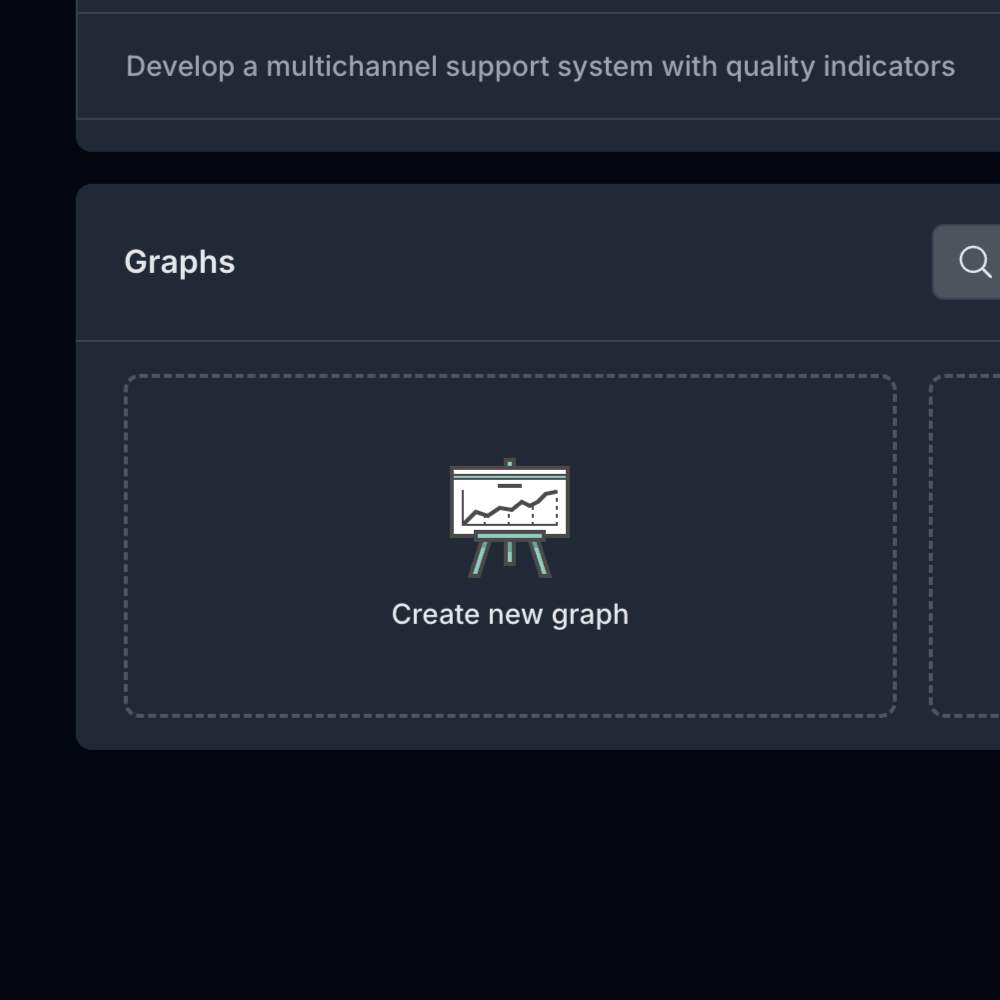
- To create a graph, click on the "Create new Graph" icon.
- If you'd like to learn how to create a graph step by step, check out this guide: Assigning graphs to members of your organization.

- Use the footers to add any additional information that complements your administrative scale. If you need to add more text, click the three-dot menu as shown in the image:
- Done! Keep refining details, adjusting headers, footers, plans, and graphs as your strategy evolves. Your scale is now in motion, and each improvement will make it more aligned and effective toward your goals.
Assign members to each part of your strategy
In addition to building your administrative scale, you can assign responsible members to each section of the strategy, depending on what is needed at each level or stage. This allows you to distribute responsibilities, keep ownership clear, and ensure every step is managed by the right person.
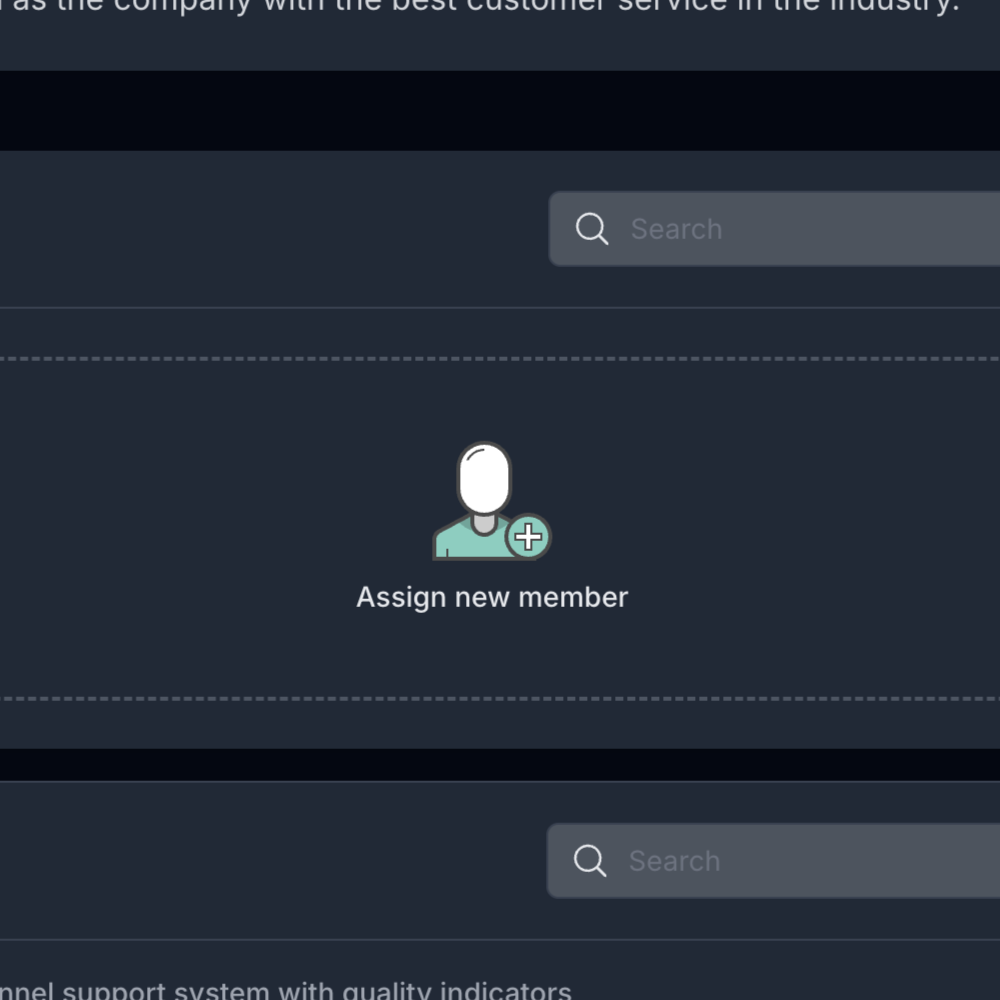
Click the corresponding icon to assign members:
If you'd like to see how to invite people to your organization or how to assign graphs or other elements, check out this guide as well: Assigning graphs to members of your organization.
Start Today with Spatium
Begin with a free membership and build your organizational strategy at no cost. It's a great way to explore Spatium and experience how it works before subscribing to a paid membership with expanded capabilities and more team members.
Create your free account and discover how to build your administrative scale, assign teams, and visualize your entire organization in one place.